Is Canva a photo editor?
Not really. Canva is a graphic design tool for layouts, posts and templates. It has light photo tweaks, but for proper cropping, straightening and exposure on property photos, PhotoEdit Studio is purpose-built.

PhotoEdit vs Canva
Canva is a brilliant design tool, but it is not a photo editor. Here is how PhotoEdit Studio compares for the job that matters — actually improving your property photos.
Free account · No card · Manual editing is free
Quick answer
PhotoEdit Studio and Canva solve different problems. PhotoEdit Studio is a property photo editor for cropping, straightening, brightening and adjusting images, with Create Social Graphic for listing posts. Canva is a graphic design tool for brochures, presentations and layouts that are not built around one listing photo.
Not really. Canva is a graphic design tool for layouts, posts and templates. It has light photo tweaks, but for proper cropping, straightening and exposure on property photos, PhotoEdit Studio is purpose-built.
Use PhotoEdit Studio to improve the photo — crop, straighten, brighten and balance. For listing posts, open Create Social Graphic in the same editor. Use Canva when you need brochures, presentations or layouts that are not built around one listing photo.
Yes. Create Social Graphic opens from the editor toolbar after you upload a photo. Templates include Just Listed, Sold STC, Let Agreed and Instagram, Facebook and LinkedIn sizes. Still exports are free with a PhotoEdit account.
Yes. Edit the photo in PhotoEdit Studio first. For listing posts, stay in the editor and open Create Social Graphic. Drop the finished image into Canva only when you still need a brochure, presentation or another layout.
Canva is excellent at what it does: helping non-designers create social posts, brochures, flyers and presentations from templates. But it is a layout and graphics tool, not a photo editor. Its image adjustments are basic, and it is not built to straighten a crooked room or recover a blown-out window.
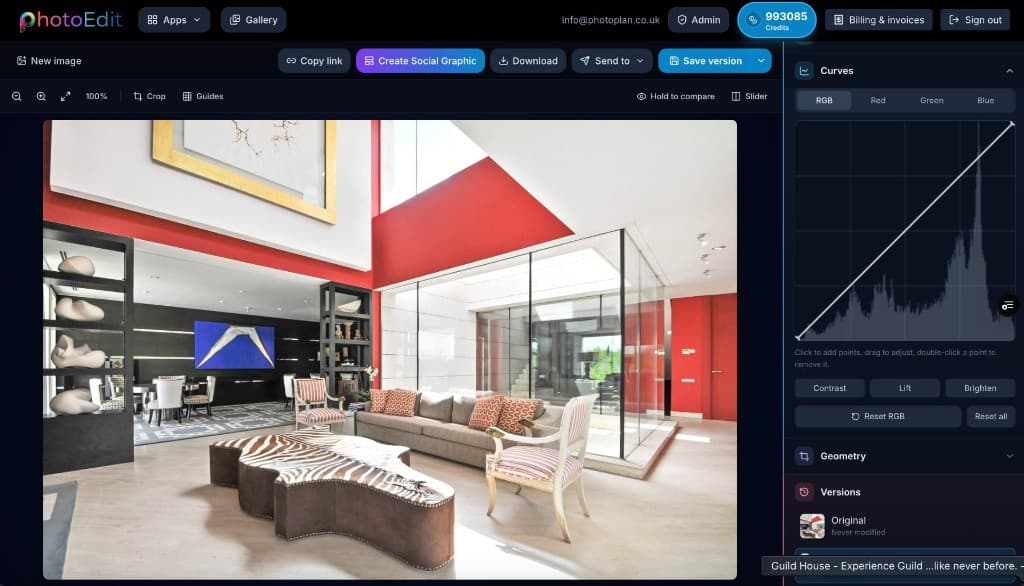
PhotoEdit Studio is purpose-built for the photo itself. It crops, straightens, brightens, balances exposure and adjusts colour with tools tuned for property interiors and exteriors — the things that make a listing photo look professional.
In practice you can often stay in PhotoEdit: improve the photo, then open Create Social Graphic for a Just Listed or Sold STC post. Use Canva when you still need a brochure, presentation or a layout that is not built around one listing photo.
Step-by-step
From a free PhotoEdit account to a downloaded, marketing-ready image.
Sign in or register with email or Google. No card is required. The same ReHub login works across PhotoEdit and the other ReHub apps.
Drag and drop, browse or paste an image straight into the editor. JPG, PNG and WEBP are all supported — nothing to install.
Level the horizon, reframe the shot and fine-tune exposure, contrast, brightness and colour with simple sliders designed for non-designers.
Export a cleaner, well-composed photo for your portal, brochure or social post. Optional PhotoClear tools in the same editor may use credits.
Why choose PhotoEdit
Crop, straighten and balance exposure — not just light filters.
Built for the bright windows and dark corners of property photos.
No templates to wade through — just the editing you need.
The core editor costs nothing and runs in the browser.
Example use cases
Real ways property professionals put this to work every day.
Straighten, brighten and crop in PhotoEdit.
Open Create Social Graphic for Just Listed and Sold STC.
Edit photos first, then lay them out in Canva.
Use Canva for presentations and multi-page layouts.
Start in PhotoEdit Studio to make the photo look its best. For a Just Listed or Sold STC post, stay in the editor and open Create Social Graphic. Move to Canva only when you need a brochure, presentation or a layout that is not built around one listing photo.
Compare
| Factor | PhotoEdit Studio | Canva |
|---|---|---|
| Primary job | Editing the photo | Designing layouts |
| Crop & straighten | Core feature | Basic |
| Exposure & colour | Full controls | Light filters |
| Listing posts | Create Social Graphic in the editor | General social templates |
| Property tuning | Built for property | General-purpose |
| Cost | Free | Free / paid tiers |
FAQs
5 answers to the questions property professionals ask most.
Explore further
Create a free account, upload a photo and crop, straighten and brighten it into a cleaner, marketing-ready image. Manual editing is free — no card and no download.
Free account · No card · Manual editing is free