How do I create a social graphic in PhotoEdit?
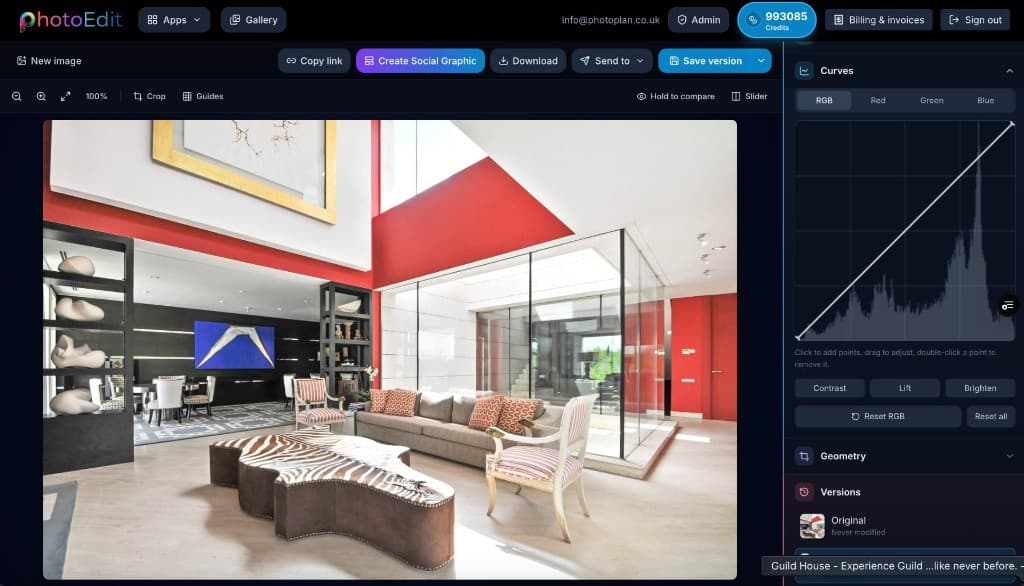
Sign in, upload a property photo, make any crop or colour edits, then click Create Social Graphic in the editor toolbar. Pick a template, edit the text and branding, and download the result.

Create Social Graphic
Edit the photo, then click Create Social Graphic. Pick a property template, add text and a logo, and export for Instagram, Facebook or LinkedIn — free with a PhotoEdit account.
Opens the editor · Upload a photo, then click Create Social Graphic
Quick answer
Create Social Graphic is the PhotoEdit Studio design studio. After you edit a listing photo, open it from the editor toolbar, choose a template such as Just Listed, Sold STC or Let Agreed, add text, shapes and a logo, then export a PNG or JPEG. Still graphics are free with a PhotoEdit account. Optional Animate turns the graphic into a short MP4 and uses 1 ReHub credit.
Sign in, upload a property photo, make any crop or colour edits, then click Create Social Graphic in the editor toolbar. Pick a template, edit the text and branding, and download the result.
Yes. Still graphics — templates, text, brand kit and PNG or JPEG export — are free with a PhotoEdit account. No card is required. Optional Animate video uses 1 ReHub credit.
Property templates include Just Listed, New Instruction, Coming Soon, Open House, Featured Property, Luxury Collection, Investment Opportunity, Price Reduced, Sold STC and Let Agreed. Social sizes include Instagram, Facebook, LinkedIn, Market Update, Agent Spotlight and Testimonial.
Not for everyday listing posts. Create Social Graphic covers property templates, text and branding in the same editor. Canva remains useful for brochures, presentations and designs that are not built around a single listing photo.
Most listing posts start as a photograph that still needs a crop, a brightness pass and a status line. Create Social Graphic keeps that work in PhotoEdit: you finish the photo, then open a full-screen studio on top of it.
Templates are written for estate agents — Just Listed, Coming Soon, Sold STC, Let Agreed — with sizes for Instagram, Facebook and LinkedIn. Add a headline, a call to action and a brand logo, then export a PNG or JPEG.
The studio lives in the editor, not on a separate website. Upload a photo, click Create Social Graphic, and you are in. Optional Animate can turn the finished still into a five-second MP4; that render uses 1 ReHub credit.
Step-by-step
The studio opens from the editor. Upload a photo first, then click Create Social Graphic.
Sign in to PhotoEdit. Create Social Graphic is included with your account — no card for still posts.
Upload an image, then crop, straighten or brighten it so the property looks its best.
Use the toolbar button in the editor. Your current edit becomes the canvas background.
Pick Just Listed or another template, edit the copy, add a logo, then export a PNG or JPEG.
Why it is in the editor
Just Listed, Sold STC, Let Agreed and more — not generic poster layouts.
The studio starts from the photo you just cropped and colour-corrected.
Save a logo and colours, then export at Instagram, Facebook or LinkedIn sizes.
PNG and JPEG downloads do not use credits. Animate video uses 1 credit if you want motion.
Example use cases
Real ways property professionals put this to work every day.
Announce a new instruction with a badge and headline.
Update followers when a listing changes status.
Instagram story, portrait and square sizes in one studio.
Drop in a logo and palette from your Brand Kit.
The left rail covers templates, text, shapes, brand assets and export. You can move, resize and restyle layers on the canvas, apply a Brand Kit (logo, colours, fonts and a default call to action), and download a PNG or JPEG at the chosen size.
Background removal is available on image layers inside the studio — the same free, on-device cutout as the main editor.
From the studio you can turn a still graphic into a five-second MP4 with entrance motion. Animate is rendered in the browser. It is charged at 1 ReHub credit after a successful render — still PNG and JPEG downloads stay free.
Compare
| Factor | PhotoEdit Create Social Graphic | General design tool |
|---|---|---|
| Starts from | The photo you just edited | A blank canvas or stock layout |
| Templates | Just Listed, Sold STC, Let Agreed and social sizes | General posts, flyers and presentations |
| Photo tools | Full PhotoEdit crop, tone and colour first | Light image tweaks |
| Still export | Free with a PhotoEdit account | Often free with watermarks or a paid plan |
| Motion | Optional Animate — 1 ReHub credit | Separate video or animation products |
FAQs
4 answers to the questions property professionals ask most.
Explore further
Create a free account, edit the photo, then click Create Social Graphic. Still templates are free; Animate uses 1 credit if you want video.
Opens the editor · Upload a photo, then click Create Social Graphic