How to Create a Branded Just Listed or Sold STC Post from a Property Photo
Edit the listing photo in PhotoEdit, then use Create Social Graphic for a Just Listed or Sold STC post with your logo, text and a social size.
By The PhotoEdit Studio Team · 16 October 2026
Quick answer
Finish the property photo in PhotoEdit, then click Create Social Graphic in the editor toolbar. Choose the Just Listed or Sold STC template, add your headline, call to action and logo, and export a PNG or JPEG at an Instagram, Facebook or LinkedIn size the studio provides. Still graphics are free with a PhotoEdit account. Optional Animate video uses 1 ReHub credit. There is no separate design app to open.
Key takeaways
- Edit the photo first. The graphic uses that edit as the background.
- Just Listed and Sold STC are templates in Create Social Graphic.
- Still PNG and JPEG exports are free. Animate uses 1 credit.
- Social sizes in the studio are not the same as portal photo sizes.
- A post does not need to claim a result the listing has not earned.
Edit the photograph before you design the post
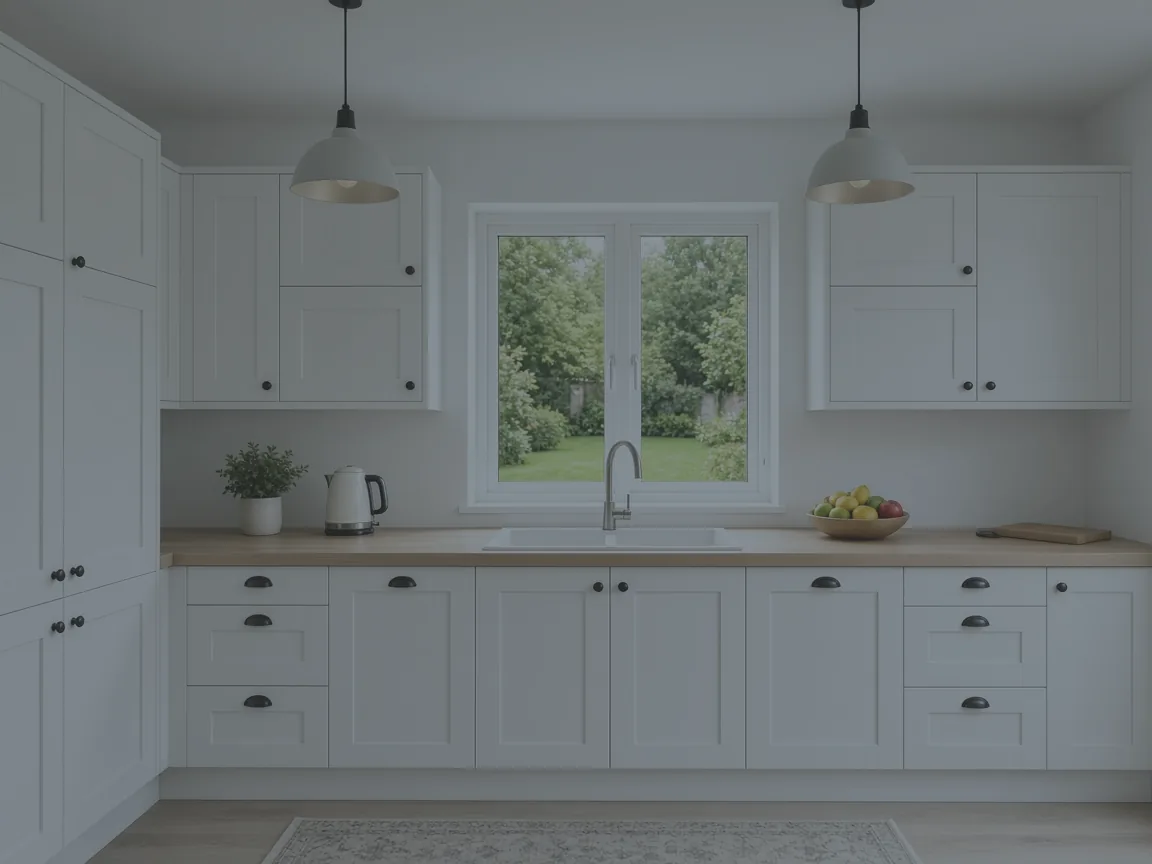
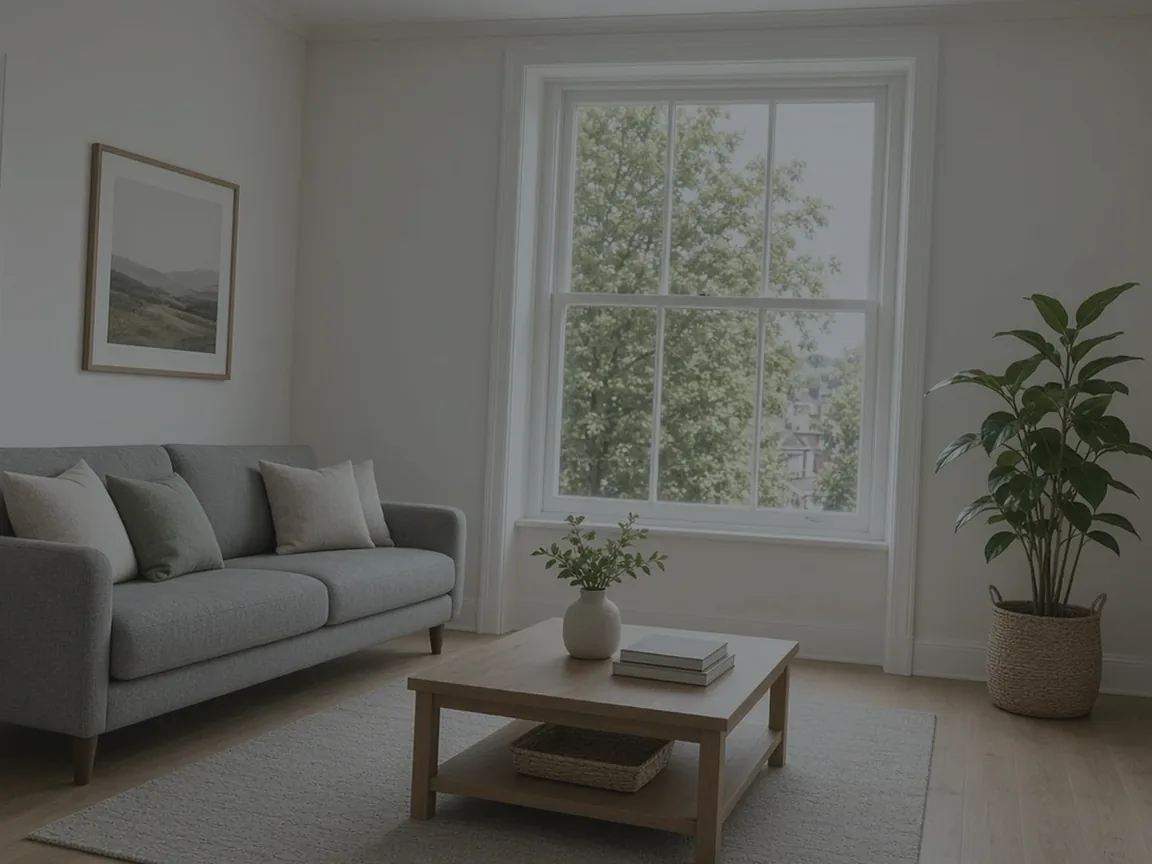
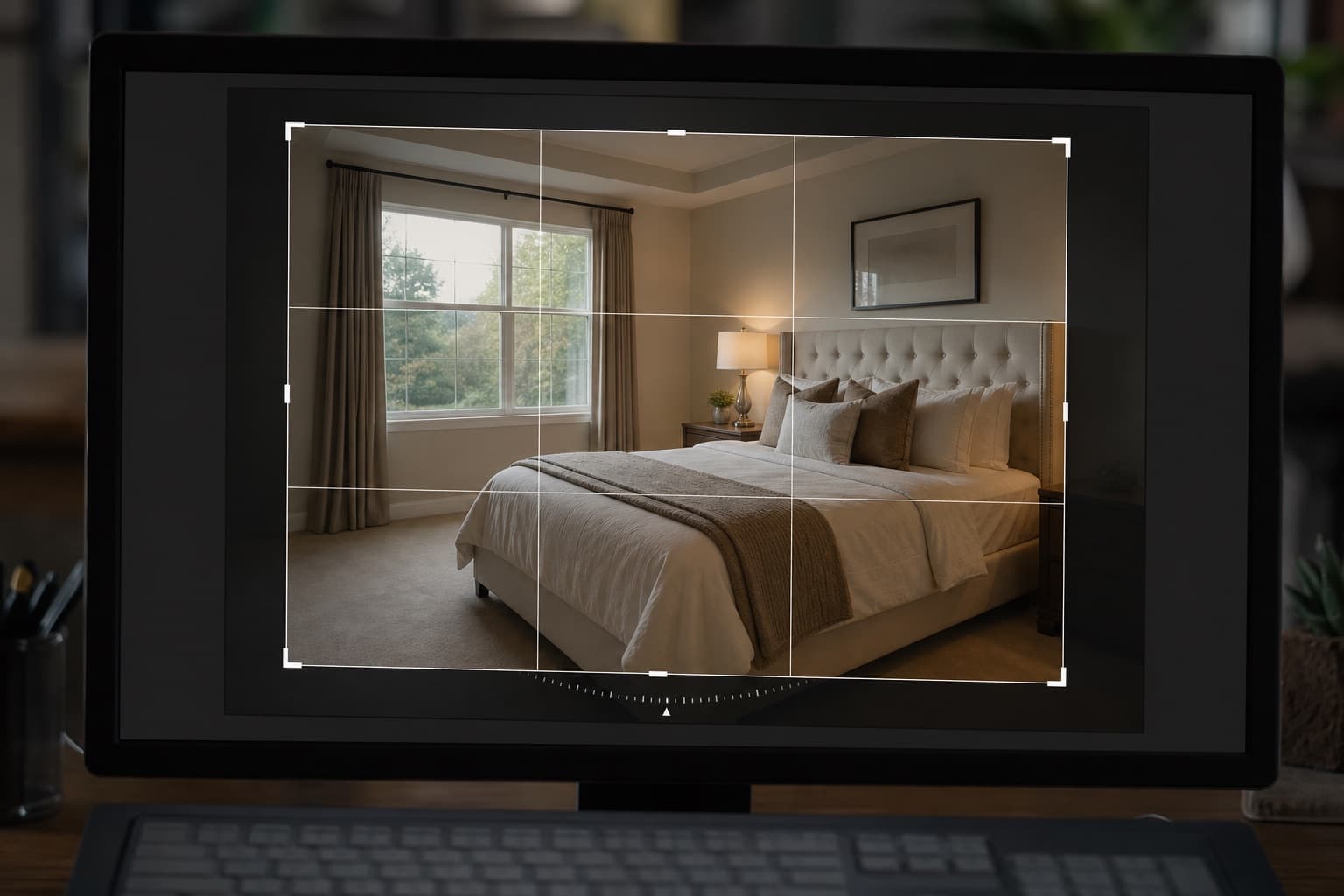
A status badge will not fix a dark or crooked photo. Upload the image in PhotoEdit and use the free Edit tab: crop, straighten, and balance the light. If the room needs a declutter or the exterior sky needs replacing, do that on the PhotoClear tab first — those steps use credits — and only then open the studio. The graphic background is the edit you have just made.
The full photo workflow is in upload to export. The studio itself is explained on Create Social Graphic.
Open the studio and pick the status
Click Create Social Graphic in the editor toolbar. Choose Just Listed for a new instruction or Sold STC when that is the true status. Other property templates include Coming Soon, New Instruction, Let Agreed, Price Reduced and Open House. Use the status you are allowed to publish. Do not put Sold STC on a property that is not sold subject to contract.
The left side of the studio holds templates, text, shapes, brand assets and export. Click the headline and rewrite it. A useful line names the area or the property type. Leave out claims you cannot support, including promises about enquiries, viewing numbers or a sale price.
Apply the brand, then choose a size
If you have saved a Brand Kit, apply it so the logo, colours and type match the agency. If you have not, add the logo as an image layer. Background removal on that logo layer is free and runs in the browser, which helps when the logo file has a white box behind it.
Set the canvas to the network you are posting on:
- Instagram Square, 1080 × 1080
- Instagram Portrait, 1080 × 1350
- Instagram Story, 1080 × 1920
- Facebook Post, 1200 × 630
- LinkedIn Post, 1200 × 1200
Those sizes are the studio’s export presets. They are not Rightmove or Zoopla listing-photo dimensions. Portal photographs should follow the portal’s own current guidance.
Check the photo is not hidden behind the badge, that the phone number or call to action is readable, and that the status is correct. Then download a PNG or JPEG. That still export does not use credits.
If you want motion
Animate, inside the same studio, renders a five-second MP4. It uses 1 ReHub credit after the render succeeds. Skip it when a still post is enough.
Saved designs can be reopened from Social graphics in your project gallery. Share a public link only if you mean the post to be public.
Use Create a Social Graphic on the feature page to open the editor, upload a photo and reach the toolbar button.