How to Declutter Property Photos While Representing the Home Honestly
Choose light, medium or full declutter inside PhotoEdit, know the credit cost, and check the result still shows the real property.
By The PhotoEdit Studio Team · 16 October 2026
Quick answer
Declutter a listing photo inside PhotoEdit, on the PhotoClear tab. Light uses 1 ReHub credit and is for obvious mess. Medium uses 2 and also targets personal items while keeping furniture. Full uses 3 and is a much stronger, minimal tidy. Do the free crop and straighten first, then compare the result with the original. Do not publish an image that hides damage or no longer looks like the home.
Key takeaways
- Decluttering is in PhotoEdit. You do not open another app.
- Light, medium and full use 1, 2 and 3 credits.
- Start with the lightest strength that solves the photo.
- Free crop and light tools come first and do not use credits.
- Reject any result that misrepresents the property.
Decide whether the photo needs an AI tidy
Look at the frame before you spend a credit. A cable, a pile of post or a toy in the corner is clutter. A cracked tile, a stain on the ceiling or a missing socket is part of the property. The first can be a declutter. The second should stay in the photograph.
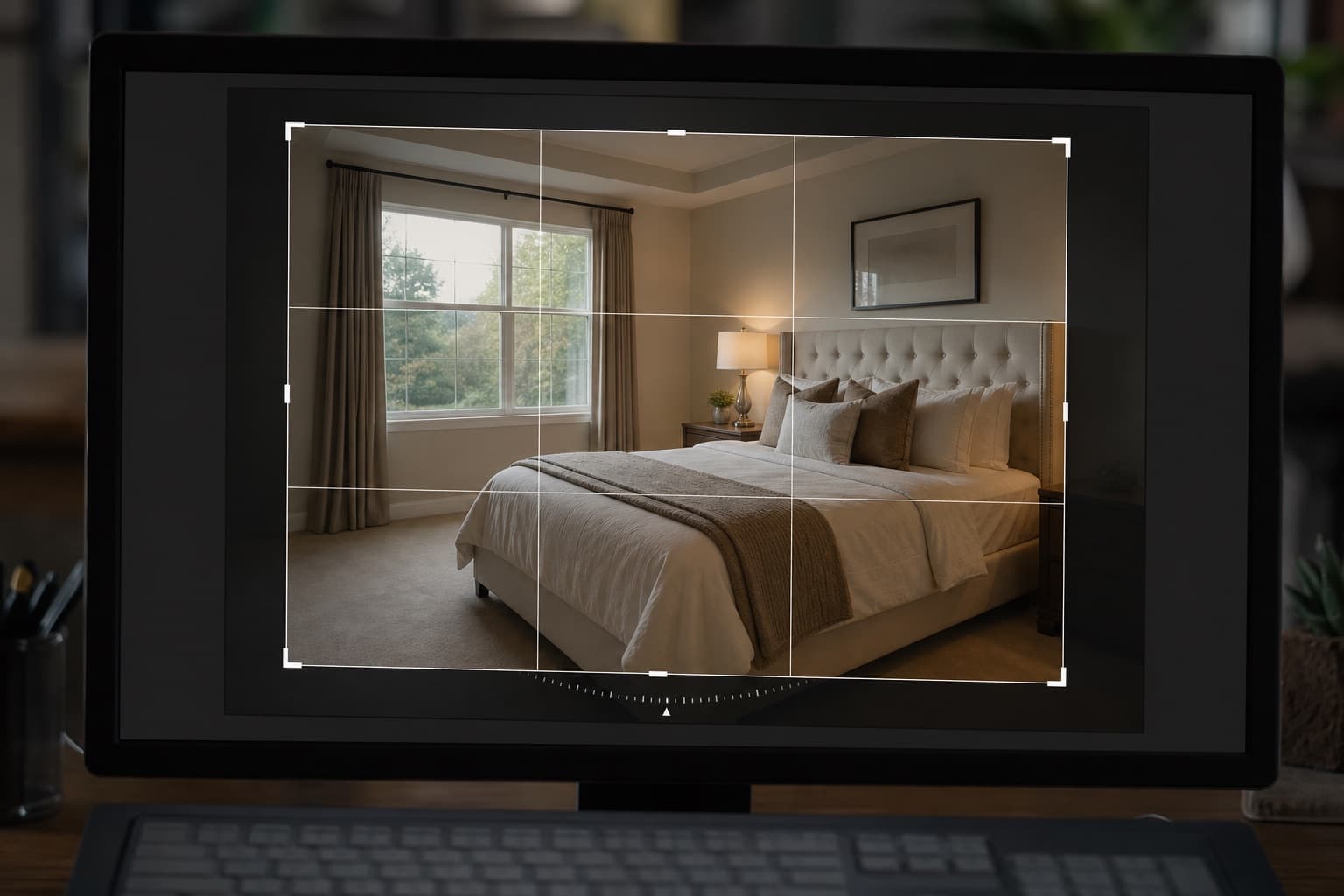
If the only problems are a crooked line or a dark corner, stay on the free Edit tab. Crop, straighten, shadows and highlights do not use credits. The upload to export guide covers that order.
Open PhotoClear in the same editor
Create a free account, upload the photo and switch to the PhotoClear tab. Declutter offers three strengths. The declutter page matches what you see in the product:
- Light (1 credit). Obvious mess: rubbish, loose papers, packaging. Decorative items and plants are meant to stay, so the room can still look lived in.
- Medium (2 credits). Clutter and personal items, with furniture and the structure kept. Bedding is meant to be smoothed, not removed.
- Full (3 credits). A minimal look that also clears decorations and small accessories, while keeping major furniture and the architecture. This changes the photo the most. Use it only when that is the treatment you intend, and check it twice.
Run one strength. If Light is enough, stop. A second, stronger pass is another credit and another chance to remove something you wanted to keep.
What to compare before you export
Put the result next to the original and check:
- Walls, ceilings, floors and window frames are still the same room.
- Major furniture has not moved or changed colour.
- Nothing material has vanished: damage, a radiator, a door, the view that was actually there.
- The tidy does not invent a show-home finish the property does not have.
If any of those fail, undo. A lighter strength, or no AI step at all, is a better listing photo than a convincing fiction.
Gardens and drives have their own 1-credit tools on the same tab — tidy garden, bins, cars — and the same honesty rule applies. Removing a bin is not the same as removing a neighbouring building.
What this is not
Decluttering does not stage an empty room. If you need furniture that was never there, that is Virtual Staging Studio, and you should label staged images in the way your portal and your agency require.
It also does not improve enquiry or sale numbers. It only changes the photograph. Publish the version that a visitor would recognise.
When the result is fair, export it and use Start Editing Free on the declutter page the next time you have a frame to tidy.